> For the complete documentation index, see [llms.txt](https://broker-docs.tiger.com/llms.txt). Markdown versions of documentation pages are available by appending `.md` to page URLs; this page is available as [Markdown](https://broker-docs.tiger.com/english-2/hyperliquid/hyperliquid-affiliate.md).
# Hyperliquid Affiliate
When you trade with Tiger.com Broker, you get a double benefit:
* **4% fee discount** from Hyperliquid
* **10% cashback** on exchange fees from Tiger.com
{% hint style="info" %}
Cashback is credited only for orders placed through the Tiger.com terminal, typically within 48 hours. It is calculated from the *trading fee* charged by the exchange. **The builder fee is not included in the cashback calculation.**
{% endhint %}
> **Calculation example:**
>
> Trading through the Tiger.com terminal, you paid a total fee of 6.0542:
>
> * exchange fee — 4.1186;
> * builder fee — 1.9356.
>
> The referral payout is calculated from the exchange fee only, excluding the builder fee:
>
> 4.1186 × 10% = approximately 0.4118
>
> The builder fee is not included in the referral payout base.
To take advantage of the Hyperliquid Affiliate referral program:
{% hint style="info" %}
When authorizing your personal wallet on the exchange, uncheck every box that does not relate to our referral program; otherwise the registration will not be made under our code.
{% endhint %}
{% stepper %}
{% step %}
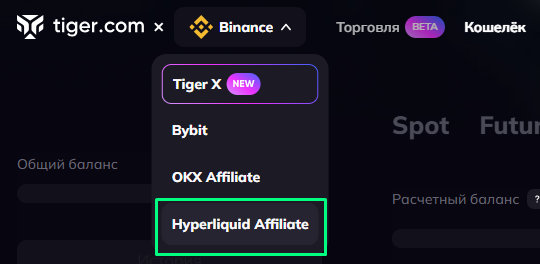
## Open the Hyperliquid Affiliate section
Open the Hyperliquid Affiliate section in your Tiger.com Broker personal account (in the dropdown list in the top left corner):
{% endstep %}
{% step %}
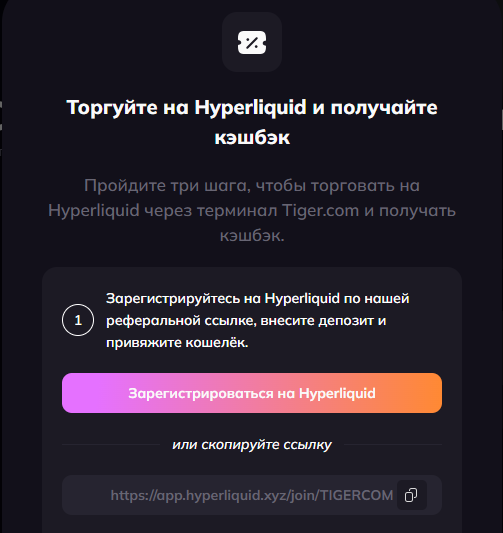
## Sign up on Hyperliquid
Sign up on Hyperliquid through our referral link (click the "Sign up" button), or open in your browser:
{% endstep %}
{% step %}
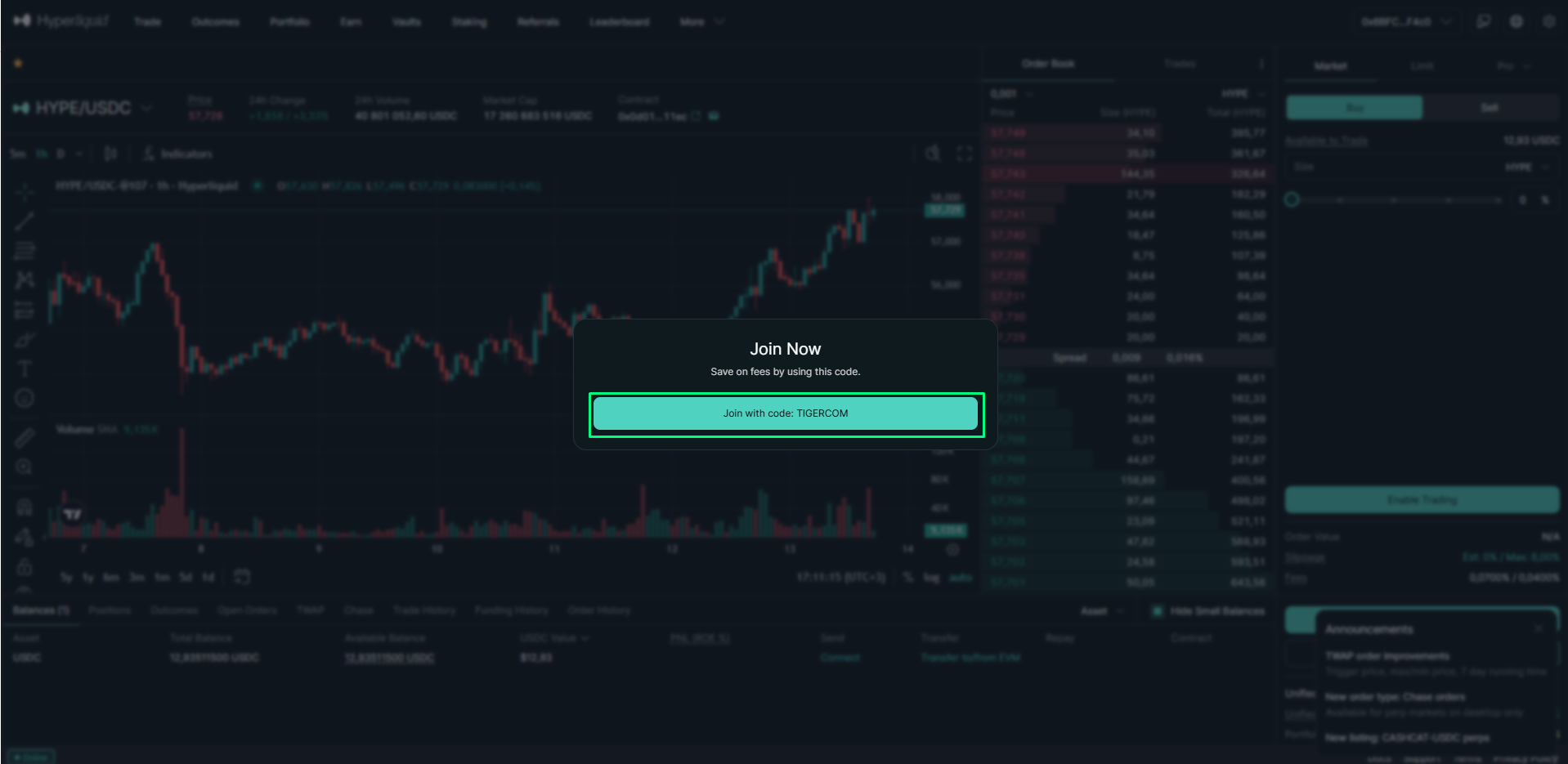
## Confirm the referral code
On the Hyperliquid page that opens, confirm the referral code TIGERCOM by clicking "Join with code: TIGERCOM":
{% endstep %}
{% step %}
## Deposit funds
Deposit funds on the Hyperliquid website using the Deposit button (minimum balance — 10 USDC). Deposit instructions, including how to set up a SafePal wallet first, are available in our knowledge base [here](https://support.tiger.com/nastroiki/podklyucheniya/kriptobirzhi/hyperliquid#etap-1-nastroika-i-aktivaciya-koshelka) (steps 1–9). You can use SafePal or any other wallet supported by Hyperliquid.
{% endstep %}
{% step %}
## Enable trading
On the Hyperliquid website, click "Enable Trading" in the bottom right corner to activate trading and confirm the action in your wallet.
{% endstep %}
{% step %}
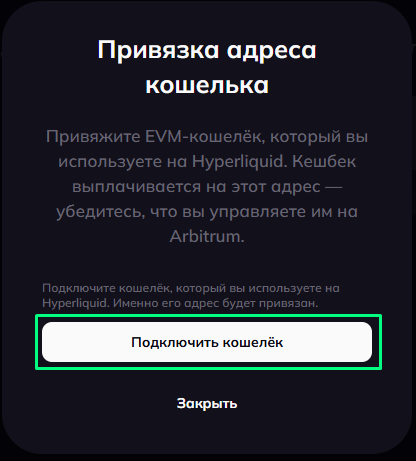
## Connect your wallet
In your Tiger.com Broker personal account, connect the EVM wallet you use on Hyperliquid by clicking "Connect wallet":
{% endstep %}
{% step %}
## Approve the Tiger.com builder
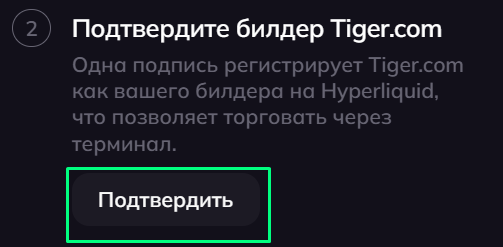
Click "Confirm" to approve the Tiger.com builder, then confirm the action in your wallet:
{% endstep %}
{% step %}
## Create a trading key
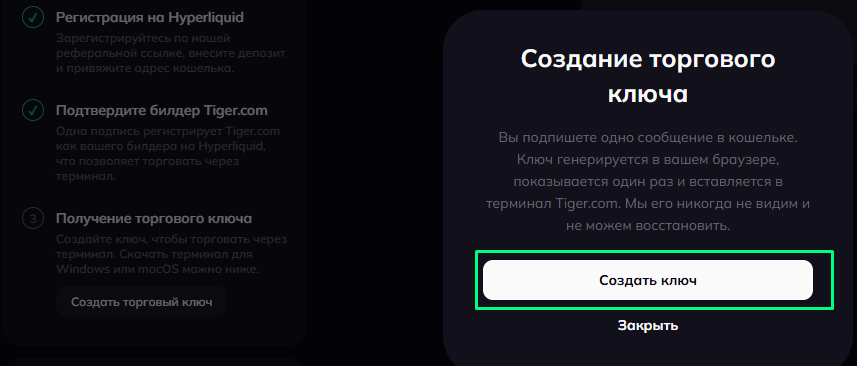
In your Tiger.com Broker personal account, click "Create trading key" and confirm the action in your wallet:
{% endstep %}
{% step %}
## Save your wallet address and private key
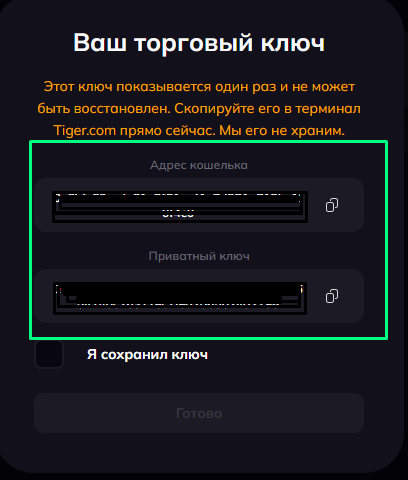
After you confirm, the wallet address and the private key are shown (the private key is shown only once). Save this information in a safe place:
{% endstep %}
{% step %}
## Set up the Hyperliquid connection
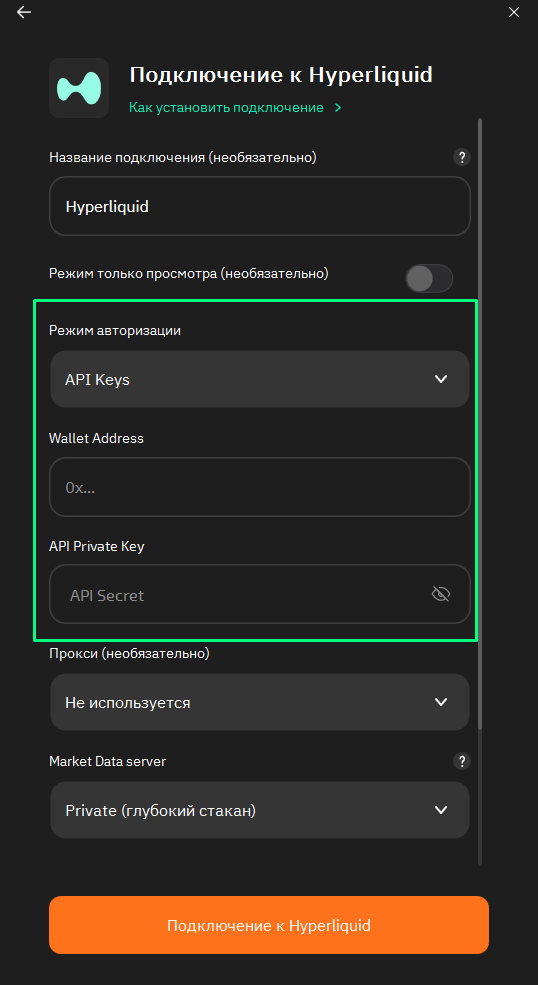
Set up the Hyperliquid connection in the Tiger.com terminal using the wallet address and private key from the previous step.
{% endstep %}
{% endstepper %}
## Connecting in the Tiger.com terminal
In the Tiger.com terminal for Windows, open **File -> Connections -> Configure**, select the Hyperliquid connector from the list and set the authorization mode to **API Keys**:
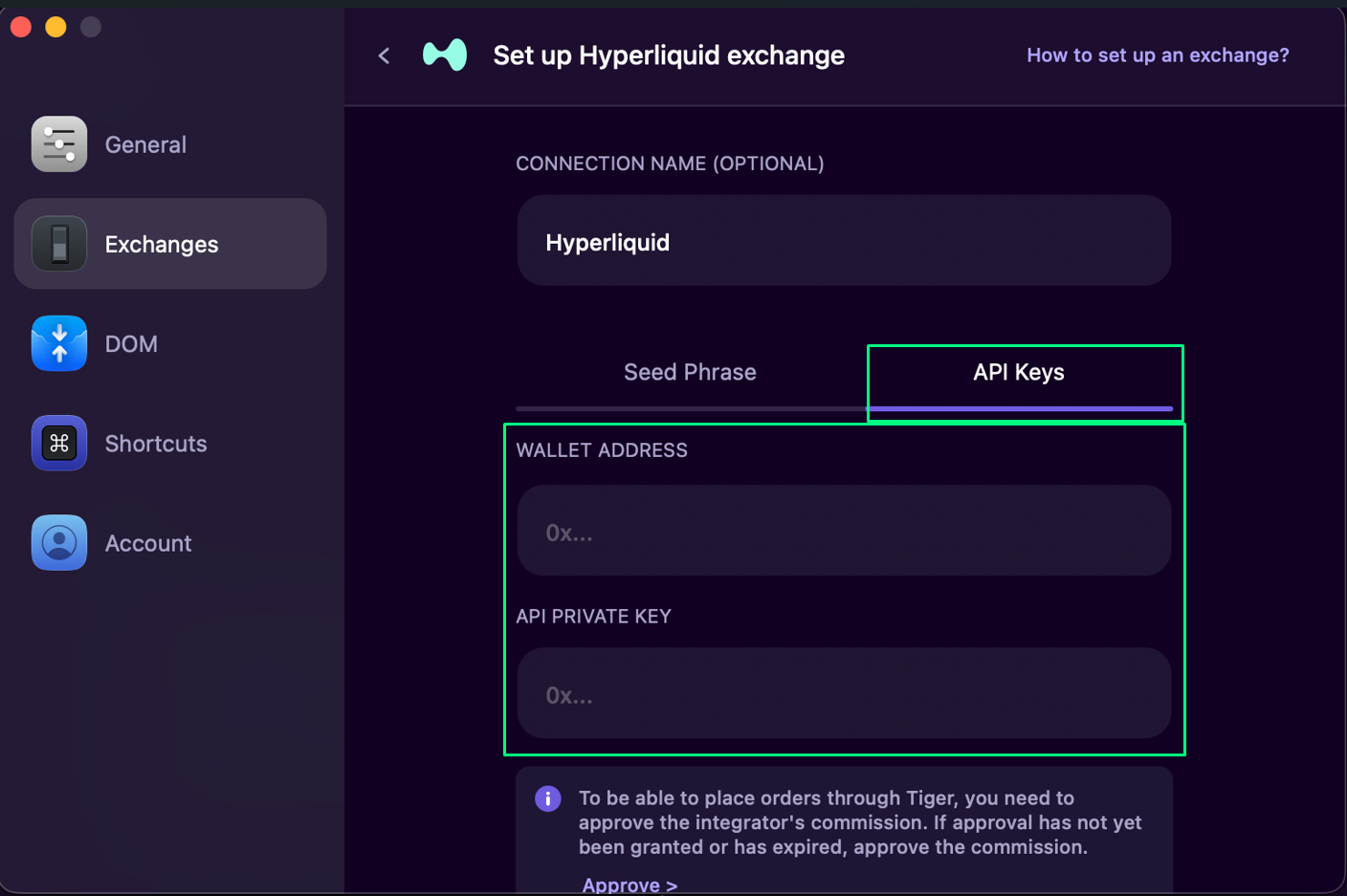
In the Tiger.com terminal for macOS, go to **Preferences -> Exchanges -> Add a new connection -> Hyperliquid**:
---
# Agent Instructions
This documentation is published with GitBook. GitBook is the documentation platform designed so that both humans and AI agents can read, navigate, and reason over technical content effectively. Learn more at gitbook.com.
## Querying This Documentation
If you need additional information that is not directly available in this page, you can query the documentation by asking a question.
Perform an HTTP GET request on the following URL with the `ask` and `goal` query parameters:
```
GET https://broker-docs.tiger.com/english-2/hyperliquid/hyperliquid-affiliate.md?ask=&goal=
```
`ask` is the immediate question: it should be specific, self-contained, and written in natural language.
`goal` is what the user is ultimately trying to achieve, the reason they need the answer. Sharing it helps GitBook give you a better, more relevant answer. A goal is most helpful when it describes the outcome the user wants rather than restating the question. For example, with `ask=how do I create an API token`, a goal like `automate deployments from our CI pipeline` lets GitBook tailor the answer to that use case.
The response will contain a direct answer to the question and relevant excerpts and sources from the documentation.
Use this mechanism when the answer is not explicitly present in the current page, you need clarification or additional context, or you want to retrieve related documentation sections.